Update Browser Bookmarks in Group Policy – Google Chrome
This guide assumes that you have already created a GPO called “Browser Shortcuts” and linked it to the root or the OU containing users.
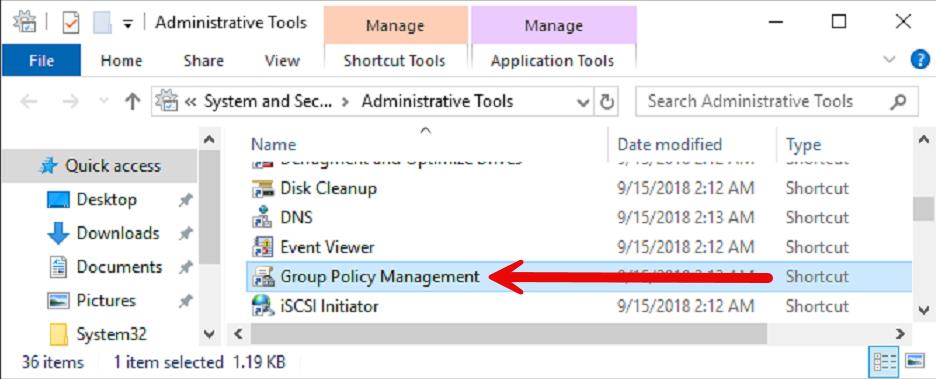
In “Administrative Tools,” open “Group Policy Management
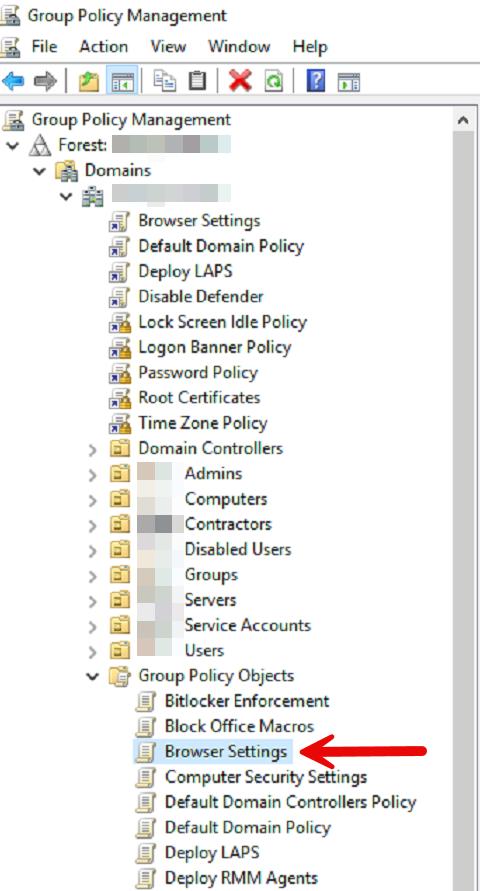
Locate the “Browser Settings” GPO, right-click, then “Edit.”
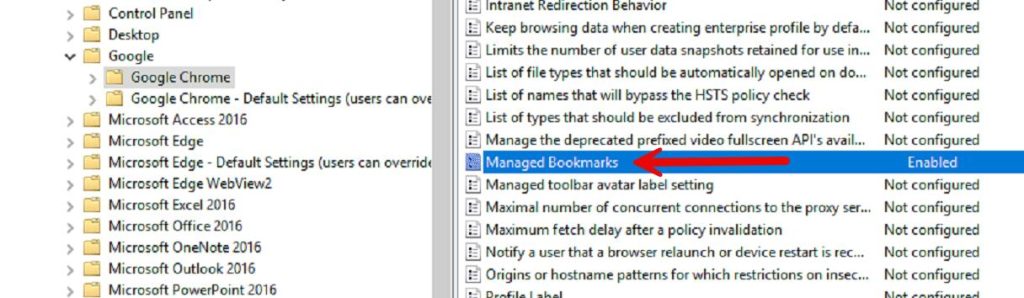
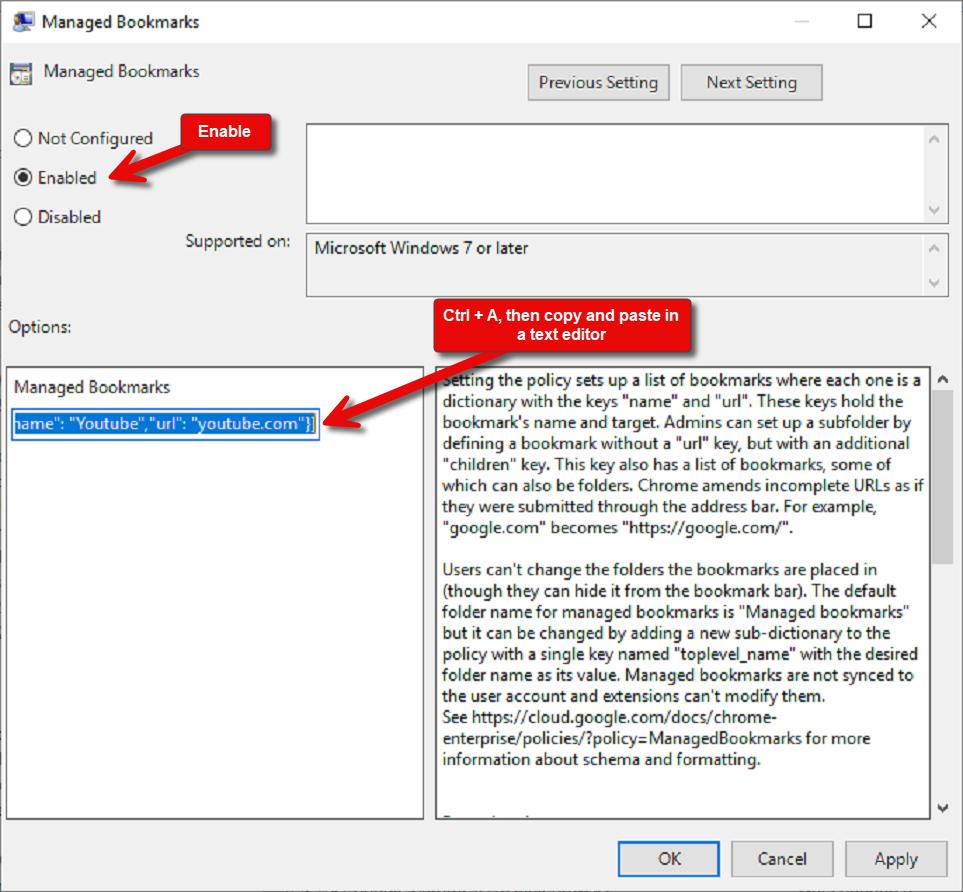
Navigate to User Configuration → Policies → Administrative Templates → Google → Chrome. Then right-click on “Managed Bookmarks” and click “Edit.
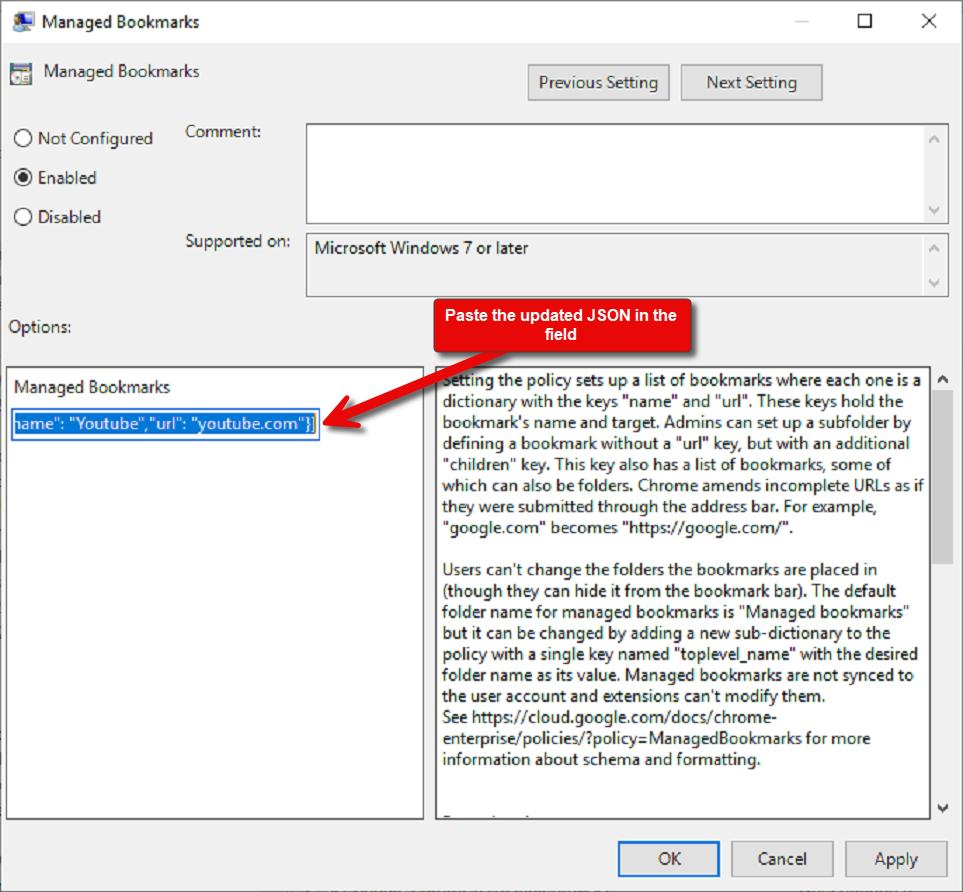
Click into the “Managed Bookmarks” field and then Ctrl + A to select all, then copy and paste into a text editor.
Be careful when editing this information as the syntax needs to be exact. Below is an example of how to modify it. The “toplevel_name” is for the folder name. “name” and “url” are for the title and URL respectively. When adding additional favorites, make sure that you add a comma at the end of the }, only the last } does not receive a comma. Most importantly, the field will only allow a single line, you need to remove all extra spaces and carriage returns before pasting. Note the example notepad image below on how it needs to look before pasting.
[
{
“toplevel_name”: “Company Shortcuts”
},
{
“name”: “Google”,
“url”: “google.com”
},
{
“name”: “Youtube”,
“url”: “youtube.com”
}
]
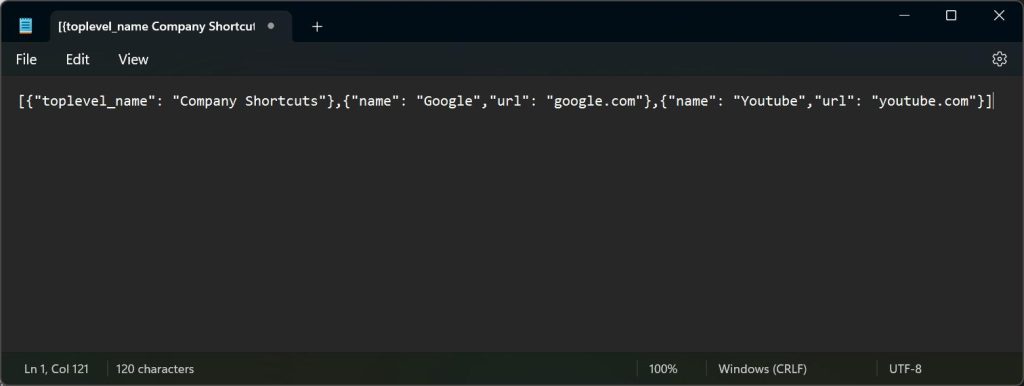
Paste the changed JSON into the “Managed Bookmarks” field and click “OK.”