How to Automate Recurring Tasks with Quick Steps in Outlook –
A Quick Step bundles several mail actions into one click or one keyboard shortcut, so a task you repeat every day (file, flag, forward, reply) runs in a single move. This article shows how to build, run and manage Quick Steps in Outlook.
| Applies to | Where Quick Steps live | Shortcut keys |
| Classic Outlook for Windows (Microsoft 365, 2016–2024) | Home tab › Quick Steps gallery | Ctrl+Shift+1 to 9 |
| New Outlook for Windows and Outlook on the web | Home tab › Quick steps drop-down | Ctrl+Shift+5 to 9 |
Quick Steps work on email only. They are not available in Calendar, People or Tasks, and Outlook for Mac does not offer them. Unlike rules, a Quick Step never runs on its own: you choose when to apply it to the selected message.
How Quick Steps work
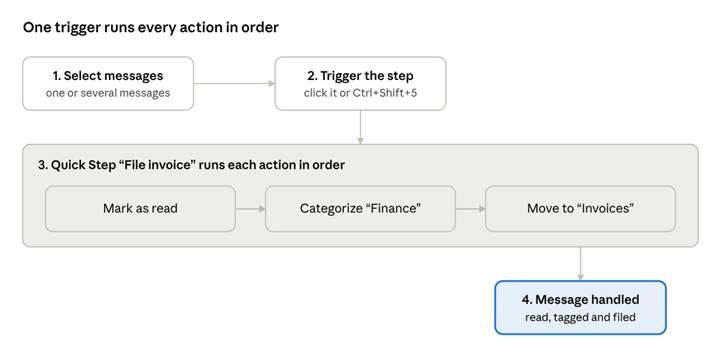
Quick Step flow · select, trigger, actions run, done
You choose the messages and the moment; the Quick Step runs its saved actions one after another. A mail rule, by contrast, runs on its own as mail arrives.
Before you start
A task is worth a Quick Step when you do the same two or more actions on the same kind of message several times a week.
- Know your Outlook version. In classic Outlook the toggle at the top right reads Try the new Outlook; in new Outlook it reads New Outlook and is switched on. The steps differ, so follow the matching section below.
- Create target folders first. A Quick Step can only move or copy to a folder that already exists.
- List the actions in order. Write down exactly what you do by hand today, for example: mark as read › flag for follow-up › move to Invoices.
- Test on a sample message. Some actions (such as delete or move) are not reversed by Ctrl+Z, so try a new Quick Step on a message you don’t need first.
Good candidates for a Quick Step:
| Recurring task | Actions to combine |
| Filing invoices or receipts | Mark as read, categorize Finance, move to Invoices |
| Escalating a request to your manager | Forward to manager, flag for follow-up, move to Escalated |
| Clearing newsletters | Mark as read, move to Read later |
| Turning an email into a to-do | Flag for follow-up (Today), pin, categorize Action |
| Team hand-off | Forward to team alias, categorize Delegated, move to Done |
Create a Quick Step in classic Outlook
Classic Outlook offers the widest set of actions, including replying with set text and creating a new message.
- Open Mail and select the Home tab.
- In the Quick Steps gallery, select Create New. The Edit Quick Step dialog opens.
- In Name, type a short label you’ll recognise on the ribbon, such as File invoice. Select the icon beside the name to pick an icon.
- Under Actions, open the Choose an Action list and pick the first action (for example, Mark as read).
- Select Add Action and pick the next one. Repeat until every step is listed, in the order they should run.
- For actions that need a target, fill in the field that appears: a folder for Move to folder, recipients for Forward, a category for Categorize message.
- Under Optional, pick a Shortcut key (Ctrl+Shift+1 to 9) and add Tooltip text describing what the step does.
- Select Finish. The new Quick Step appears at the top of the gallery on the Home tab.
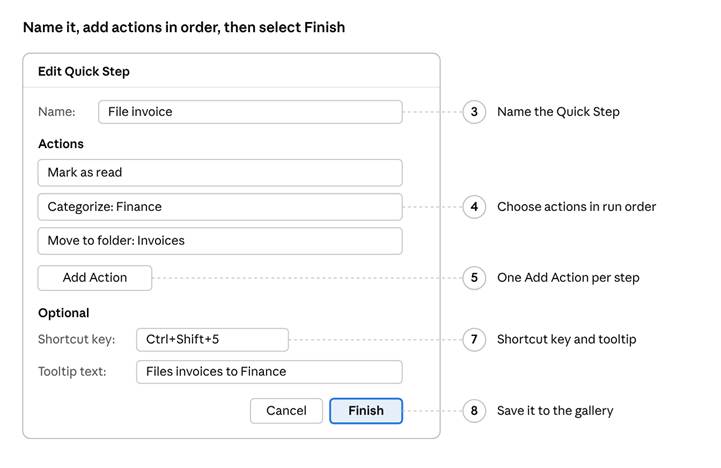
Edit Quick Step dialog, illustrated · numbers match the steps
Simplified illustration of the classic Outlook dialog; the numbered callouts match the steps above.
To start from a template instead, select Quick Steps › New Quick Step and choose a preset such as Move to Folder, Reply & Delete or Team Email, then adjust it.
Create a Quick Step in new Outlook or Outlook on the web
New Outlook and Outlook on the web share the same Quick Steps, stored in your mailbox, but offer fewer actions than classic Outlook.
- Select Mail in the navigation pane.
- On the Home tab, open the drop-down next to Quick steps and select Manage quick steps.
- In the Settings window, under Quick steps, select + New quick step.
- Type a Name and choose an icon.
- Under Choose an action, pick the first action, then select Add another action for each further step.
- Optionally pick a keyboard shortcut (Ctrl+Shift+5 to 9).
- Select Save.
Two gaps to know about: new Outlook has no action for creating a brand-new message, and it can’t insert reply text. If your recurring task depends on either, build it in classic Outlook or use an email template instead. Quick Steps created in classic Outlook may not carry over to new Outlook, so recreate any you still need.
Ready-made recipes
Copy these into your own Quick Steps; folder, category and recipient names are examples to replace with yours.
| Quick Step name | Actions, in order | Shortcut | Works in new Outlook |
| File invoice | Mark as read › Categorize Finance › Move to Invoices | Ctrl+Shift+5 | Yes |
| Needs action | Flag for follow-up (Today) › Pin › Categorize Action | Ctrl+Shift+6 | Yes |
| Escalate to manager | Forward to your manager › Flag for follow-up › Move to Escalated | Ctrl+Shift+7 | Yes |
| Done | Mark as read › Move to Archive | Ctrl+Shift+8 | Yes |
| Out at a client | Reply with set text › CC assistant › Flag › Move to Follow up | Ctrl+Shift+1 | No, classic only |
| Daily team update | New message to team alias with a set subject | Ctrl+Shift+2 | No, classic only |
Keep shortcuts 5 to 9 for steps you want in both versions, since new Outlook only accepts those.
Run, edit and manage Quick Steps
Select one or more messages, then click the Quick Step on the Home tab or press its shortcut; every action runs in order on each selected message.
| To… | Classic Outlook | New Outlook / web |
| Run a Quick Step | Home › Quick Steps gallery, or its Ctrl+Shift+number | Home › Quick steps, its Ctrl+Shift+number, or the ribbon of a popped-out message |
| Edit one | Right-click it in the gallery › Edit | Quick steps drop-down › Manage quick steps › pencil icon |
| Duplicate one | Manage Quick Steps › select it › Duplicate | Recreate it with + New quick step |
| Reorder the gallery | Manage Quick Steps › up and down arrows | Manage quick steps › up and down arrows › Save |
| Delete one | Manage Quick Steps › select it › Delete | Manage quick steps › bin icon |
| Reset to defaults | Manage Quick Steps › Reset to Defaults | Not available |
Quick Steps are saved in your mailbox, so the ones you build follow you to any other computer running the same version of Outlook with your account. To share one with a colleague, send them its action list from the Ready-made recipes table; there is no export button.
Troubleshooting and FAQ
| Problem | Fix |
| Quick Steps gallery is greyed out | You are in Calendar, People or a folder view. Switch to Mail and select a message. |
| My classic Quick Steps are missing in new Outlook | The two versions don’t always share them. Recreate them in Manage quick steps. |
| “New message” or reply-with-text action is missing | New Outlook doesn’t offer these actions. Use classic Outlook or an email template. |
| Shortcut Ctrl+Shift+1 to 4 does nothing | New Outlook and the web only accept Ctrl+Shift+5 to 9. Reassign the shortcut. |
| A message went to the wrong folder | Open the target folder and move it back by hand, then edit the Quick Step’s folder. |
| I want this to happen automatically | Use a mail rule instead (File › Manage Rules & Alerts, or Settings › Mail › Rules). Quick Steps only run when you trigger them. |