Deploying Self-Service Password Reset (SSPR) On-Premises and Hybrid –
This walks an administrator through deploying Self-Service Password Reset (SSPR) in two environments: a purely on-premises Active Directory using Microsoft Identity Manager (MIM) SSPR, and a hybrid Active Directory + Microsoft Entra ID tenant using Entra SSPR with password writeback.
| Field | Value |
| Audience | Identity / Active Directory administrators, service desk leads |
| Applies to | Active Directory Domain Services (Windows Server 2016+), Microsoft Entra ID, Microsoft Entra Connect Sync, Microsoft Entra Cloud Sync, Microsoft Identity Manager 2016 SP2/SP3 |
| Outcome | Users can reset forgotten passwords and unlock accounts without calling the service desk |
| Estimated effort | Hybrid: 2–4 hours plus pilot; On-premises MIM: 2–5 days including SQL, SharePoint and portal build |
About the images in this KB: each part opens with a flow diagram, and every console step has an annotated mock-up of the screen. Numbered badges on each mock-up match the step numbers in the list above it, and highlighted boxes show exactly what to click, tick or type. The mock-ups mirror the real layouts but are simplified; your console may show extra options or slightly different labels.
Choose a deployment model
If you hold Microsoft Entra ID P1 or higher, deploy the hybrid model (Part B); Microsoft recommends it for new customers and for migrating existing FIM/MIM SSPR users. Use the on-premises MIM model (Part A) only when users must never depend on a cloud service, or when you already run MIM.
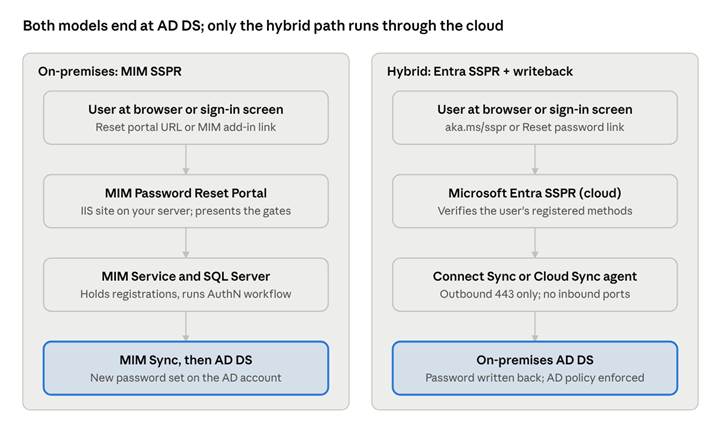
SSPR architecture · on-premises vs hybrid request path
In both models the user’s password ultimately changes in AD DS. The hybrid model replaces the reset portal, service and database tiers with Microsoft’s cloud service and a single outbound-only agent.
| Factor | Part A: On-premises (MIM SSPR) | Part B: Hybrid (Entra SSPR + writeback) |
| Servers you build | MIM Sync, MIM Service and Portal, SQL Server, SharePoint, reset and registration IIS sites | One Entra Connect Sync server, or one or more lightweight Cloud Sync agents |
| Licensing | MIM server license (or Entra ID P1/P2 entitlement) + Windows Server, SQL, SharePoint CALs | Entra ID P1 or P2 (or Microsoft 365 Business Premium / E3 / E5) per user |
| Verification methods | Q&A gate, one-time password by email or SMS, phone gate through a custom MFA provider | Authenticator app, SMS/voice, email, security questions, and other methods in the Authentication methods policy |
| Windows sign-in reset | MIM Add-ins and Extensions on each PC | Built into Windows 10 1803+ and Windows 11 (Entra joined or hybrid joined) |
| Internet needed to reset | No (internal only, unless you publish the portals) | Yes, user and agent reach Microsoft cloud over 443 |
| Product lifecycle | MIM 2016 extended support ends 9 January 2029 | Cloud service, continuously updated |
Note: Azure MFA Server stopped servicing MFA requests on 30 September 2024. MIM SSPR deployments that used it must switch to a custom MFA provider or move to Entra SSPR.
Prerequisites and licensing
Confirm every item for your chosen model before starting; most failed deployments trace back to a missing permission or a password-age policy.
Common to both models
- ☐ AD DS domain at a supported functional level, with domain controllers on a supported Windows Server version.
- ☐ Account lockout policy defined in Group Policy (needed for the unlock scenario).
- ☐ Minimum password age set to 0 in the Default Domain Policy (Computer Configuration > Policies > Windows Settings > Security Settings > Account Policies). A value above 0 blocks a second reset on the same day.
- ☐ A pilot security group (example: SSPR-Pilot) containing a few non-administrator test users.
- ☐ A support contact (email or URL) to show users on the reset pages.
- ☐ A change-management ticket and a rollback plan approved.
Part A: On-premises (MIM)
| Component | Requirement |
| MIM version | MIM 2016 SP2 (supported to May 2027) or SP3, build 4.7.6.0 (recommended) |
| Servers | Windows Server 2019 or 2022 for MIM Service/Portal and the reset and registration portals |
| Database | SQL Server; SP3 adds SQL Server 2022 support |
| Portal host | SharePoint Server Subscription Edition (SP3). SharePoint 2016/2019 left support on 14 July 2026 |
| Service accounts | MIMSync, MIMMA, MIMService, MIMSSPR (app pool for both SSPR sites), SharePoint farm/pool accounts; gMSAs supported |
| DNS + certificates | Host names such as passwordreset.contoso.com and passwordregistration.contoso.com, each with a TLS certificate |
| MFA (optional gates) | A custom MFA provider for the Phone or One-Time Password SMS gates; Azure MFA Server is retired |
| Clients | MIM Add-ins and Extensions deployed to PCs for Windows sign-in reset |
Part B: Hybrid (Entra SSPR + writeback)
| Component | Requirement |
| License | Microsoft Entra ID P1 or P2 (included in Microsoft 365 Business Premium, E3, E5) for every user who resets with writeback |
| Admin roles | Authentication Policy Administrator (SSPR settings); Hybrid Identity Administrator (writeback settings) |
| Sync engine | Current Microsoft Entra Connect Sync, or Microsoft Entra Cloud Sync provisioning agent 1.1.977.0 or later |
| Sync server | Windows Server 2016 or later, domain joined |
| Network | Outbound TCP 443 from the sync server; clients reach passwordreset.microsoftonline.com on 443 |
| Users | Synchronized from AD DS; administrators can’t reset their own or other admins’ on-premises passwords through writeback |
| Windows sign-in reset | Windows 10 1803 or later / Windows 11, Microsoft Entra joined or hybrid joined |
Part A: On-premises SSPR with Microsoft Identity Manager
Part A delivers password reset and account unlock entirely inside your network, using the MIM Password Registration and Password Reset portals. The example names below use contoso.com; replace them with your own.
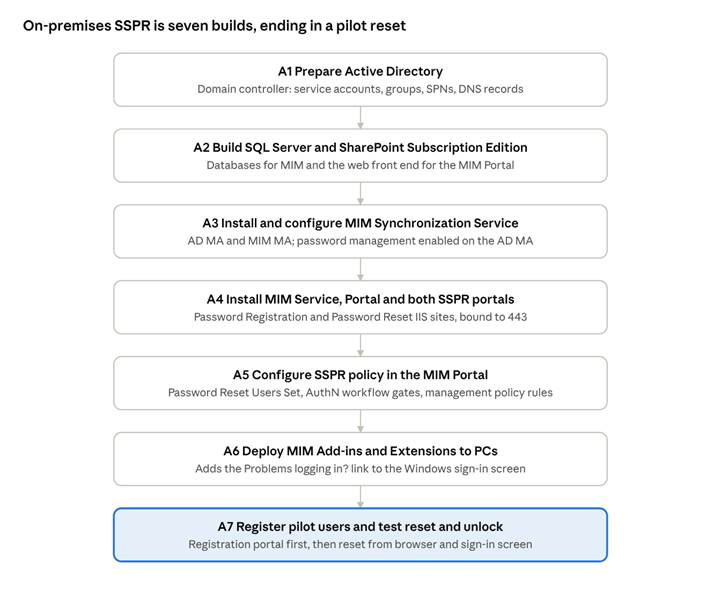
Part A build order · 7 phases, A1 to A7
Each phase depends on the one above it; do not start A5 until A3’s sync cycle shows your users in the MIM Portal.
A1. Prepare Active Directory
- On a domain controller, open Active Directory Users and Computers.
- Create these service accounts (or gMSAs) in a dedicated OU: MIMSync, MIMMA, MIMService, MIMSSPR, SharePoint, SqlServer. Set Password never expires and remove interactive logon rights.
- Create the security groups MIMSyncAdmins, MIMSyncOperators, MIMSyncJoiners, MIMSyncBrowse, MIMSyncPasswordSet.
- Register SPNs so Kerberos works for the portal, for example: setspn -S HTTP/mim.contoso.com contoso\SharePoint and setspn -S FIMService/mim.contoso.com contoso\MIMService.
- In DNS Manager, create A records for mim.contoso.com, passwordregistration.contoso.com and passwordreset.contoso.com.
- Request TLS certificates covering the three host names.
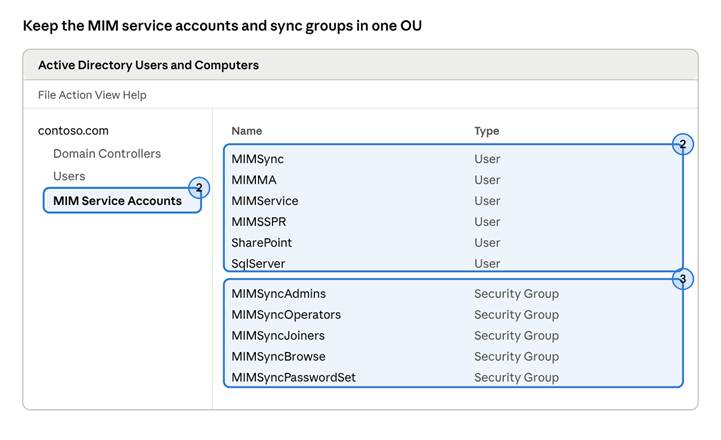
A1 · Active Directory Users and Computers
Badge 2 marks the dedicated OU and the six service accounts; badge 3 marks the five MIMSync security groups.
A2. Build SQL Server and SharePoint
- Install SQL Server (2022 with SP3) on the database server; add contoso\MIMService and contoso\MIMSync logins later through the MIM installers.
- Install SharePoint Server Subscription Edition on the MIM Service/Portal server, create a web application at https://mim.contoso.com using Windows authentication, and create a site collection from the Team Site template.
- Disable SharePoint server-side view state as described in the MIM install guide, then run iisreset.
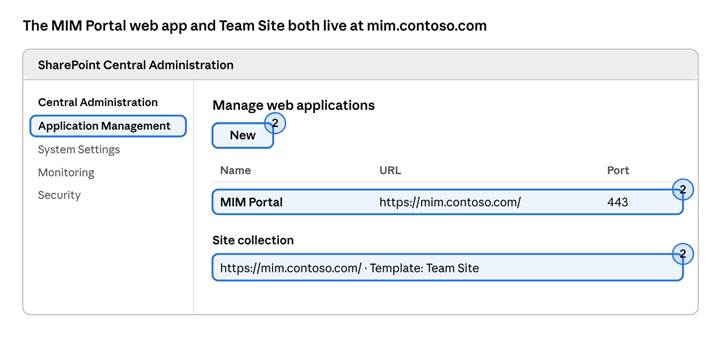
A2 · SharePoint Central Administration
Use New to create the web application on 443, then create the site collection at its root from the Team Site template.
A3. Install and configure MIM Synchronization Service
- From the MIM media, run Synchronization Service setup. Point it at the SQL instance, use contoso\MIMSync as the service account, and map the five security groups from A1.
- Open Synchronization Service Manager → Management Agents → Create → Active Directory Domain Services. Name it ADMA, connect with contoso\MIMMA, and select the user OUs in scope.
- In the ADMA properties, open Configure Extensions and tick Enable password management.
- Create the MIM Service Management Agent (MIMMA) pointing at the MIM Service database; you finish its connection after A4.
- Make sure AccountName, Domain and ObjectSID flow from AD into the MIM Service; password reset fails for users missing any of them.
- Run Full Import and Full Synchronization on both agents, then Export to the MIM MA.
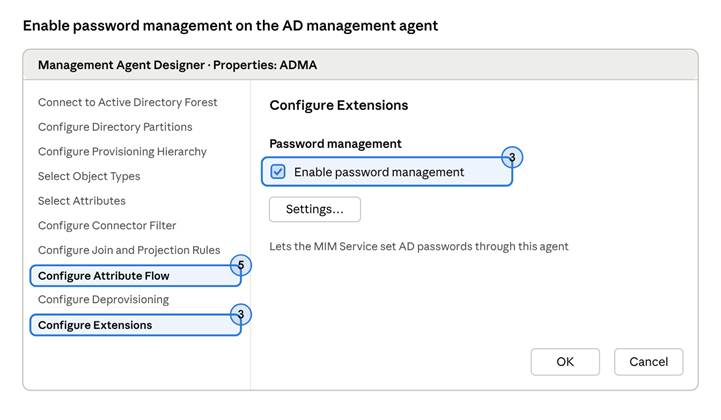
A3 · Synchronization Service Manager, ADMA properties
Badge 3: Configure Extensions → tick Enable password management. Badge 5: Configure Attribute Flow, where AccountName, Domain and ObjectSID must flow to the MIM Service.
A4. Install MIM Service, Portal and the SSPR portals
- Run Service and Portal setup on the MIM server. On Custom Setup, select MIM Service, MIM Portal, MIM Password Registration Portal and MIM Password Reset Portal.
- Enter the SQL server, the email server, contoso\MIMService as the service account, and mim.contoso.com as the MIM Service address.
- Enter the SharePoint site collection URL from A2.
- Enter https://passwordregistration.contoso.com as the Password Registration URL and https://passwordreset.contoso.com as the Password Reset URL.
- Tick Open ports 5725 and 5726 in the firewall and Grant authenticated users access to the MIM Portal site.
- On the Password Registration Portal page, enter contoso\MIMSSPR, host name passwordregistration.contoso.com, port 443, and tick Open port in firewall. Point it at mim.contoso.com as the MIM Service server.
- Repeat for the Password Reset Portal with host name passwordreset.contoso.com. Choose whether it is reachable from the intranet only or also the extranet.
- Finish the wizard, then add contoso\MIMService to the MIMSyncBrowse and MIMSyncPasswordSet groups and restart the Forefront Identity Manager Service.
- In IIS Manager, bind each SSPR site to its certificate on 443 and remove the port 80 binding.
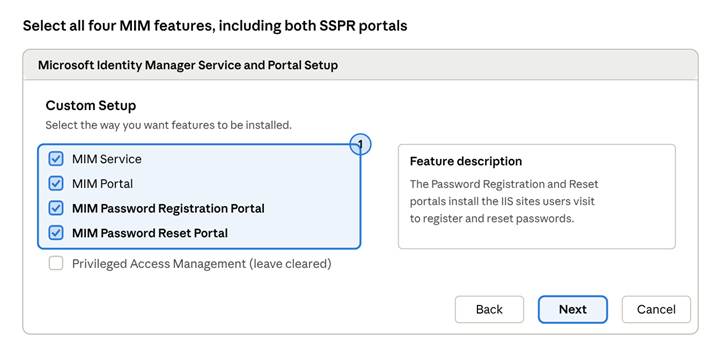
A4 step 1 · Custom Setup
Step 1: tick all four features; leave Privileged Access Management cleared unless you deploy PAM.
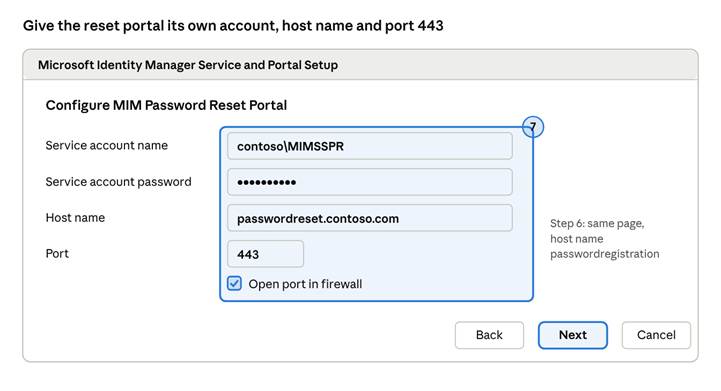
A4 steps 6–7 · SSPR portal configuration
Step 7 shown. The Password Registration Portal page in step 6 is identical; enter passwordregistration.contoso.com as its host name.
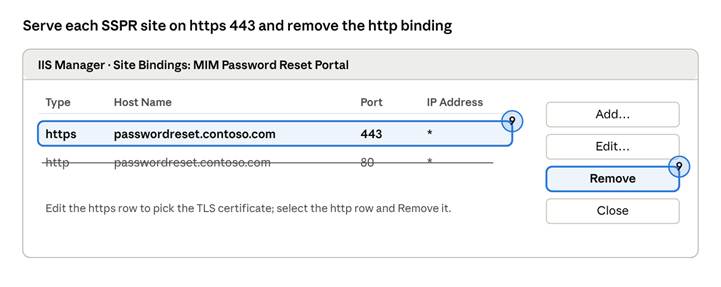
A4 step 9 · IIS Site Bindings
Repeat the bindings change on the Password Registration Portal site.
A5. Configure SSPR policy in the MIM Portal
- Browse to https://mim.contoso.com/identitymanagement as the MIM administrator.
- Open Sets → Password Reset Users Set and change its criteria so it contains the users who may reset (start with the SSPR-Pilot group).
- Open Workflows → Password Reset AuthN Workflow → Activities tab → Add Activity.
- Add one or more gates: Question and Answer Gate (set the number of questions stored and asked), One-Time Password Email Gate, One-Time Password SMS Gate or Phone Gate (the last two need a custom MFA provider). Select OK then Submit.
- Open Management Policy Rules, filter on password reset, and enable the disabled built-in rules that let anonymous users reset and password-reset users read and register.
- Run a full synchronization cycle so users pick up the set membership.
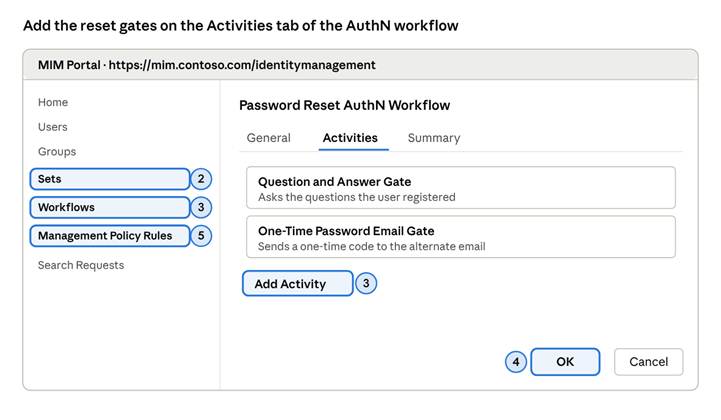
A5 · MIM Portal, Password Reset AuthN Workflow
Badge 2: edit the Password Reset Users Set. Badge 3: Workflows → Activities → Add Activity. Badge 4: OK, then Submit. Badge 5: enable the password reset management policy rules.
A6. Deploy MIM Add-ins and Extensions to PCs
- Package Add-ins and Extensions.msi (x64) from the MIM media for your software-distribution tool.
- Install with the MIM Service server name set to mim.contoso.com and the Password Reset Extension feature selected.
- Restart the PC. After several failed sign-ins, users see Problems logging in? on the sign-in screen.
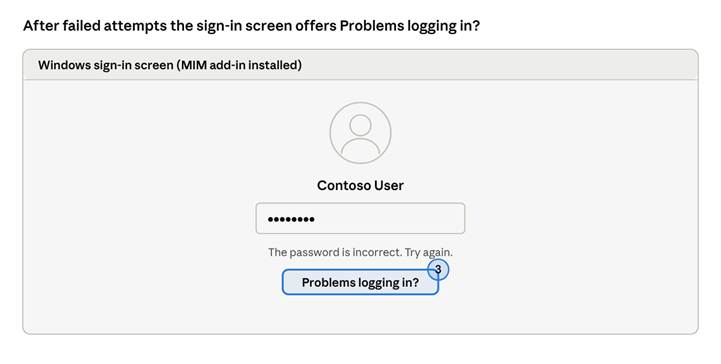
A6 · Windows sign-in with the MIM add-in
If the link does not appear after a restart, confirm the add-in points at mim.contoso.com and the PC can reach port 5725.
A7. Register pilot users and test
- As a pilot user, browse to https://passwordregistration.contoso.com, sign in, and answer the registration questions (and phone or email if those gates are enabled).
- On another PC, browse to https://passwordreset.contoso.com, enter the username, pass the gates, choose Reset password and set a new one.
- Lock the same account with repeated bad passwords, then use the portal’s Unlock account option and confirm sign-in works with the existing password.
- Repeat the reset from the Windows sign-in screen on a PC with the add-in.
- Confirm the change in ADUC (Attribute Editor → pwdLastSet) and in the MIM Portal Search Requests view.
Part B: Hybrid SSPR with Microsoft Entra ID and password writeback
Part B lets synchronized users reset or unlock their AD DS account from any browser or the Windows sign-in screen. Entra SSPR verifies the user in the cloud, then Entra Connect Sync or Cloud Sync writes the new password to AD DS over an outbound-only connection.
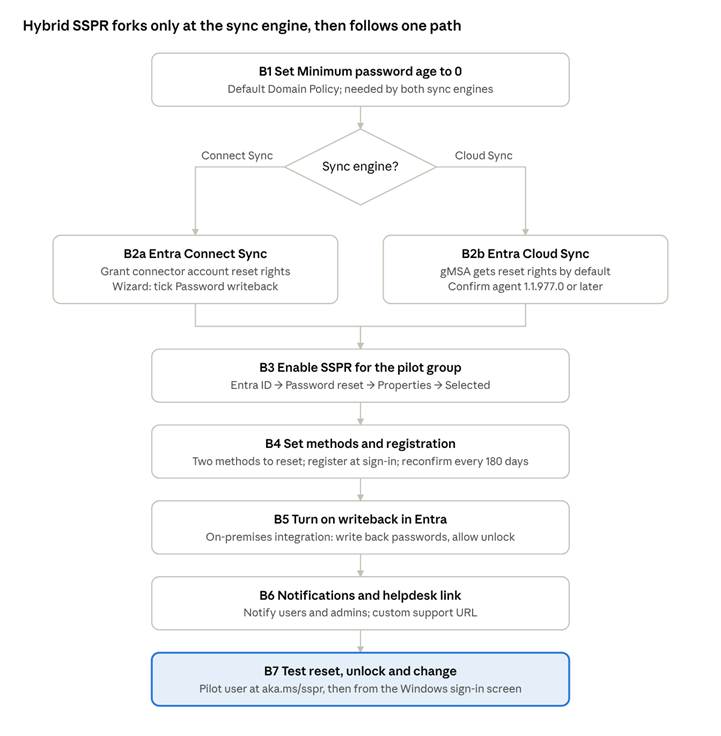
Part B build order · one fork for the sync engine, B1 to B7
Follow B2a if you run Microsoft Entra Connect Sync, B2b if you run Cloud Sync; every other step is the same.
B1. Set Minimum password age to 0
- On a domain controller, open Group Policy Management (gpmc.msc).
- Edit Default Domain Policy → Computer Configuration > Policies > Windows Settings > Security Settings > Account Policies > Password Policy.
- Set Minimum password age to 0 days and close the editor.
- Run gpupdate /force on the domain controllers, or wait for replication.
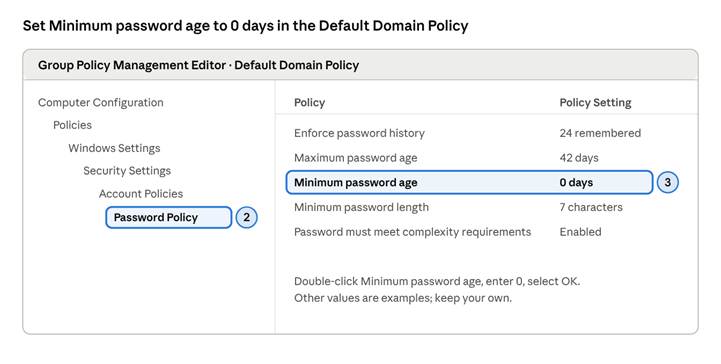
B1 · Group Policy Management Editor
Badge 2: the Password Policy node. Badge 3: Minimum password age set to 0 days.
B2a. Enable writeback in Microsoft Entra Connect Sync
Find the connector account. Open Microsoft Entra Connect → View current configuration; the AD DS account is listed under Synchronized Directories (usually MSOL_xxxxxxxx).
Grant permissions in AD DS:
- Open Active Directory Users and Computers, select View → Advanced Features.
- Right-click the domain root → Properties → Security → Advanced → Add.
- Principal: the connector account. Applies to: Descendant User objects.
- Under Permissions tick Reset password and Change password. Under Properties tick Write lockoutTime and Write pwdLastSet. Select OK.
- Select Add again, same principal, Applies to: This object and all descendant objects, tick Unexpire Password, then OK and close all dialogs.
- Repeat on the root of every domain in the forest. Allow up to an hour for replication.
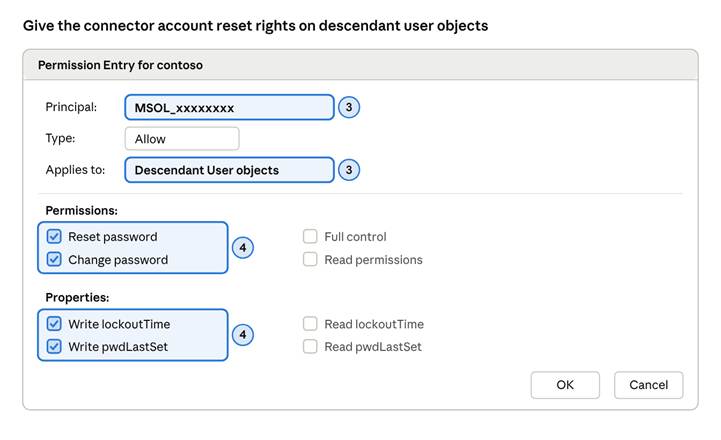
B2a steps 3–4 · Permission Entry dialog
For step 5, open a second Permission Entry for the same principal, set Applies to to This object and all descendant objects, and tick only Unexpire Password.
Turn on the feature in the wizard:
- On the Entra Connect server, start Microsoft Entra Connect → Configure.
- Choose Customize synchronization options → Next, and sign in as a Hybrid Identity Administrator.
- Select Next through Connect directories and Domain/OU filtering.
- On Optional features, tick Password writeback → Next.
- Select Next on Directory extensions, then Configure, then Exit when finished.
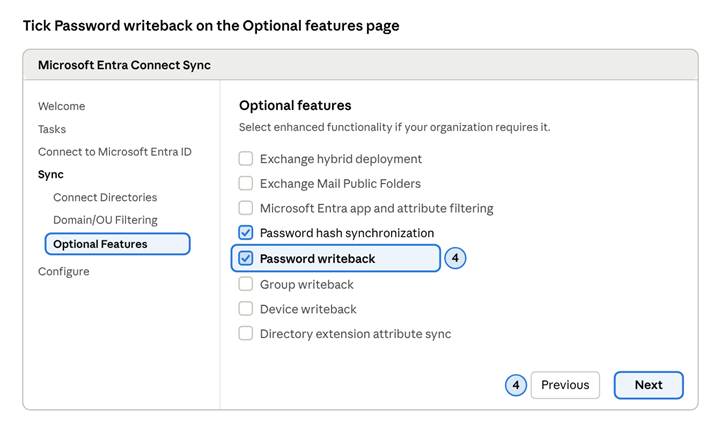
B2a wizard step 4 · Optional features
Leave your other existing selections as they are; only Password writeback changes.
Enabling writeback the first time can log events 656 and 657 on the Entra Connect server as password hashes resynchronize; this is expected.
B2b. Enable writeback with Microsoft Entra Cloud Sync
- On each provisioning-agent server, confirm the agent is 1.1.977.0 or later (Settings → Apps).
- The agent’s gMSA receives Reset password and lockoutTime write rights by default; reapply them only if you changed them.
- Either tick Write back passwords with Microsoft Entra Connect cloud sync in step B5, or enable it on the agent server with PowerShell:
Import-Module ‘C:\Program Files\Microsoft Azure AD Connect Provisioning Agent\Microsoft.CloudSync.Powershell.dll’
Set-AADCloudSyncPasswordWritebackConfiguration -Enable $true -Credential $(Get-Credential)
B3. Enable SSPR for the pilot group
- Sign in to the Microsoft Entra admin center as at least an Authentication Policy Administrator.
- Browse to Entra ID → Password reset → Properties.
- Set Self service password reset enabled to Selected, choose No groups selected, pick SSPR-Pilot and select Select.
- Select Save. Only one group can be chosen here; nested groups are supported.
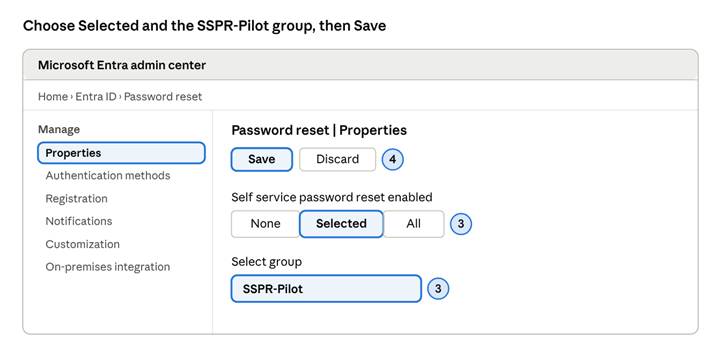
B3 · Password reset, Properties
When you go organization-wide later, return here and choose All.
B4. Set methods and registration
- In Password reset → Authentication methods, set Number of methods required to reset to 2 and select Save.
- Choose which methods users may use under Entra ID → Authentication methods → Policies (for example Microsoft Authenticator, SMS, email OTP). Since 30 September 2025 methods are managed only in this policy, not the legacy SSPR list.
- In Password reset → Registration, set Require users to register when signing in to Yes and Number of days before users are asked to reconfirm to 180. Select Save.
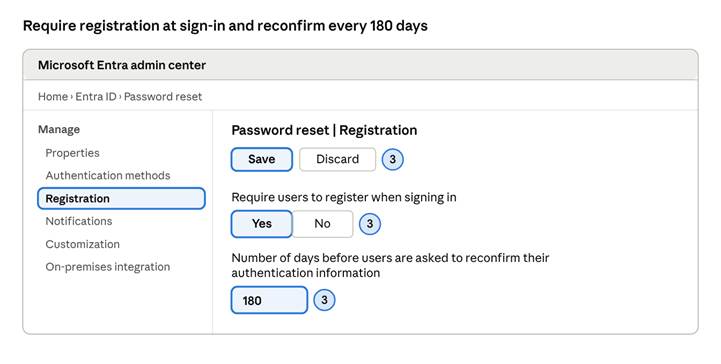
B4 step 3 · Password reset, Registration
Steps 1–2 happen on the Authentication methods blade above it in the same menu and under Entra ID → Authentication methods → Policies.
B5. Turn on password writeback in Entra
- Sign in as at least a Hybrid Identity Administrator.
- Browse to Entra ID → Password reset → On-premises integration.
- Tick Write back passwords to your on-premises directory (some tenants label it Enable password write back for synced users).
- If you use Cloud Sync, also tick Write back passwords with Microsoft Entra Connect cloud sync.
- Set Allow users to unlock accounts without resetting their password to Yes, then Save.
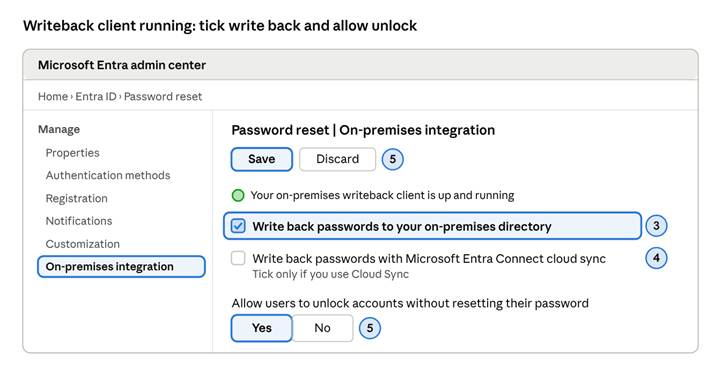
B5 · Password reset, On-premises integration
If the status line says the client is not running, fix the sync service (see Troubleshooting) before saving.
B6. Notifications and helpdesk link
- Password reset → Notifications: set Notify users on password resets? and Notify all admins when other admins reset their password? to Yes. Save.
- Password reset → Customization: set Customize helpdesk link to Yes and enter your service-desk URL or email. Save.
B7. Test as a pilot user
- In a private browser window, go to https://aka.ms/ssprsetup, sign in as a non-admin pilot user and register two methods.
- In a new private window, go to https://aka.ms/sspr, enter the username and CAPTCHA, complete both verifications and set a new password.
- Sign in to a domain-joined PC with the new password to prove writeback reached AD DS.
- Lock the account with bad passwords on-premises, then use aka.ms/sspr → Unlock account and sign in with the old password.
- Check Entra ID → Monitoring → Audit logs (service: Self-service Password Management) for the events.
Windows sign-in reset and user rollout
Adding the reset link to the Windows sign-in screen removes most remaining lockout calls, because users can recover without a second device. Part A delivers it through the MIM add-in (step A6); this section covers the hybrid model.
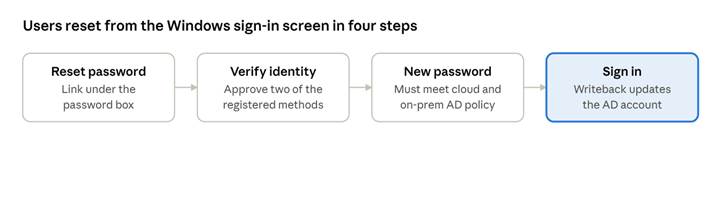
Hybrid user experience at the Windows sign-in screen · 4 steps
Enable the sign-in screen link (hybrid)
Devices must run Windows 10 1803 or later or Windows 11 and be Microsoft Entra joined or hybrid joined. Reset is not supported over Remote Desktop or Hyper-V enhanced sessions, and it fails if lock screen notifications are turned off.
Option 1 – Intune (recommended):
- In the Intune admin center go to Devices → Configuration → Create → New policy, platform Windows 10 and later, type Settings catalog.
- Name it SSPR – Sign-in screen reset.
- Add settings → category Authentication → tick Allow Aad Password Reset and set it to Allow (OMA-URI equivalent: ./Device/Vendor/MSFT/Policy/Config/Authentication/AllowAadPasswordReset, integer 1).
- Assign to a pilot device group, then Create.
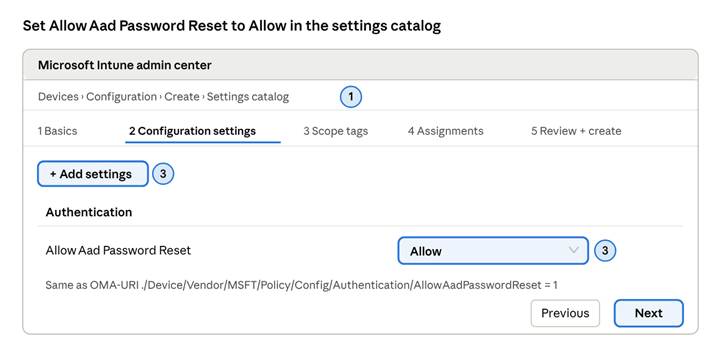
Option 1 · Intune settings catalog
On the Assignments tab (step 4), target the pilot device group first.
Option 2 – Registry or Group Policy Preferences:
HKEY_LOCAL_MACHINE\SOFTWARE\Policies\Microsoft\AzureADAccount
AllowPasswordReset REG_DWORD 1
Restart the device. Users then see Reset password (or Forgot password) under the password box.
Roll out to users
| Phase | Who | Exit criteria |
| Pilot | IT staff and service desk in SSPR-Pilot | Reset, unlock and change all succeed from browser and sign-in screen |
| Early adopters | One department added to the SSPR group | Registration rate and reset success reviewed; no writeback errors |
| Organization-wide | Change Selected to All (hybrid) or widen the Password Reset Users Set (MIM) | Service desk scripts updated, old manual reset process retired |
Before each phase, email users the registration link (https://aka.ms/ssprsetup for hybrid, your registration portal URL for MIM), the reset link (https://aka.ms/sspr or your reset portal URL), and a screenshot of the sign-in screen link. To avoid making existing users re-register, pre-populate their authentication phone or alternate email from AD or with Microsoft Graph PowerShell.
Validation, troubleshooting and references
Sign off the deployment only when every check below passes for a pilot user in each domain you support.
Validation checklist
- ☐ Pilot user registers successfully (MIM registration portal or aka.ms/ssprsetup).
- ☐ Reset from a browser succeeds and the user signs in to a domain PC with the new password.
- ☐ Reset from the Windows sign-in screen succeeds.
- ☐ Locked account unlocks without a password change.
- ☐ A second reset on the same day succeeds (proves Minimum password age = 0).
- ☐ pwdLastSet updates in ADUC Attribute Editor.
- ☐ Event appears in the MIM Portal request history or Entra audit logs.
- ☐ User receives the reset notification email (hybrid).
Troubleshooting
| Symptom | Likely cause | Fix |
| Hybrid: “We’re sorry, we can’t reset your password at this time” | Connector account lacks Reset password, lockoutTime/pwdLastSet write, or Unexpire Password; or inheritance disabled on the user | Reapply B2a permissions on every domain root; enable inheritance on the user object |
| Hybrid: second reset in a day fails | Minimum password age above 0 | Apply B1 and run gpupdate /force |
| Hybrid: new password rejected with a vague error | On-premises complexity, history or length policy not met; SSPR can’t display on-prem policy | Tell users the AD policy rules; check the Entra Connect server Application log |
| Hybrid: On-premises integration page says the writeback client is offline | Entra Connect Sync service stopped, or outbound 443 blocked | Start the ADSync service; check proxy and firewall rules |
| Admin account can’t reset through writeback | By design; admins are excluded from on-prem writeback reset | Use a separate non-admin account or reset admins in ADUC |
| Sign-in screen link missing | Policy not applied, device not Entra/hybrid joined, or lock screen notifications off | Check dsregcmd /status, the policy registry value and notifications |
| MIM: user not found at the reset portal | User not in Password Reset Users Set, or missing AccountName, Domain or ObjectSID | Fix set criteria and attribute flows, then run a sync cycle |
| MIM: reset fails after gates pass | MIM Service account not in MIMSyncPasswordSet / MIMSyncBrowse, or password management off on the AD MA | Fix group membership and the ADMA extension setting, restart the MIM Service |
| MIM: phone or SMS gate fails | Azure MFA Server retired or provider misconfigured | Configure a custom MFA provider, or move users to Entra SSPR |