Active Directory: Installation, Configuration & Management –
1. Overview and core concepts
Active Directory Domain Services (AD DS) is the Windows Server role that stores users, computers and groups, authenticates logons with Kerberos, and pushes settings through Group Policy. This KB takes an administrator from a bare Windows Server to a managed, hardened domain; each task gives the GUI path and the PowerShell equivalent.
Example values used throughout (replace with your own): domain corp.example.com, NetBIOS name CORP, first domain controller DC01 at 10.0.0.10, second DC02 at 10.0.0.11.
AD logical structure (forest, domains, OUs, DCs) and physical structure (sites)
Read the picture in two layers: the logical layer (forest, domains, OUs) decides who administers what and where policy applies; the physical layer (sites) tells AD which DCs are close to each other so logons and replication stay local.
| Term | What it is | Example |
| Forest | Top container and security boundary; shares one schema and global catalog | corp.example.com |
| Domain | Administrative and replication unit inside a forest | corp.example.com, eu.corp.example.com |
| Organizational Unit (OU) | Folder inside a domain for delegating admin rights and linking GPOs | OU=Staff,DC=corp,DC=example,DC=com |
| Domain controller (DC) | Server running AD DS that holds a writable copy of the domain database (NTDS.dit) | DC01 |
| Global catalog (GC) | DC holding a partial copy of every object in the forest, used for searches and logons | DC01 |
| Site | Group of well-connected IP subnets; controls logon locality and replication | HQ, Branch |
| Trust | Link that lets users in one domain access resources in another | Parent-child, forest trust |
| FSMO roles | Five single-master operations held by specific DCs | PDC Emulator, RID Master |
| Group Policy Object (GPO) | Bundle of settings applied to users or computers | Password policy |
| Schema | Definition of every object class and attribute in the forest | user, computer, group |
2. Planning and prerequisites
Decide the forest name, IP plan and DC count before installing anything: a domain name is very hard to change later. Plan for at least two DCs per domain so one failure never stops logons.
2.1 Server sizing
| Item | Microsoft minimum (Windows Server 2022/2025) | Recommended for a DC |
| CPU | 1.4 GHz 64-bit | 2 vCPU or more |
| RAM | 512 MB (Core), 2 GB (Desktop Experience) | 4–8 GB; enough to cache NTDS.dit in memory |
| Disk | 32 GB | 60 GB+ for OS; optional separate volume for NTDS and SYSVOL |
| Network | 1 Gbps adapter | Static IPv4, low latency to clients |
| Edition | Standard or Datacenter | Server Core for a smaller attack surface, if your team is comfortable with it |
2.2 Naming rules
- DNS domain name: use a subdomain of a public domain you own, such as corp.example.com or ad.example.com. Avoid .local and other made-up top-level domains; they clash with mDNS and cannot get public certificates.
- NetBIOS name: 15 characters or fewer, no dots, for example CORP.
- DC host names: short and predictable, for example DC01, DC02. Rename the server before promoting it.
2.3 Network and DNS
- Give every DC a static IP, subnet mask and gateway.
- On the first DC, set preferred DNS to another DC (once one exists) and alternate DNS to 127.0.0.1. On a brand-new forest, point it at itself.
- Clients and member servers must use the DCs as their DNS servers — never a public resolver directly. Add public resolvers as forwarders on the DCs instead.
- Open the required ports between sites: DNS 53, Kerberos 88, NTP 123, RPC 135, LDAP 389, SMB 445, LDAPS 636, GC 3268/3269, and the dynamic RPC range 49152–65535.
2.4 Pre-installation checklist
- ☐ Windows Server installed, fully patched and activated
- ☐ Server renamed (e.g. DC01) and restarted
- ☐ Static IP and DNS settings applied
- ☐ Time zone and clock correct
- ☐ Domain name, NetBIOS name and functional level agreed
- ☐ DSRM (Directory Services Restore Mode) password chosen and stored in a password vault
- ☐ Backup solution ready for System State
PowerShell to rename the server and set a static IP (run as Administrator):
Rename-Computer -NewName “DC01” -Restart
# After restart: find the adapter name
Get-NetAdapter
New-NetIPAddress -InterfaceAlias “Ethernet” -IPAddress 10.0.0.10 -PrefixLength 24 -DefaultGateway 10.0.0.1
Set-DnsClientServerAddress -InterfaceAlias “Ethernet” -ServerAddresses 127.0.0.1
3. Installing the AD DS role
Installing the role only copies the binaries; the server is not a domain controller until you promote it in section 4. The install takes about 5 minutes and needs no restart.
3.1 Using Server Manager (GUI)
- Sign in as a local Administrator and open Server Manager.
- Click Manage → Add Roles and Features.
- On Before You Begin, click Next.
- On Installation Type, choose Role-based or feature-based installation and click Next.
- On Server Selection, select this server (DC01) from the pool and click Next.
- On Server Roles, tick Active Directory Domain Services. In the pop-up, click Add Features to include the management tools, then click Next (see the mock-up below).
- On Features, click Next — the required features are already selected.
- On AD DS, read the notes and click Next.
- On Confirmation, optionally tick Restart the destination server automatically if required, then click Install.
- On Results, wait for the progress bar to finish. Click Promote this server to a domain controller to go straight to section 4, or close the wizard and use the yellow flag in Server Manager later.
Simplified mock-up of Server Manager → Add Roles and Features → Server Roles
You do not need to tick DNS Server here: the promotion wizard installs and configures DNS for you.
3.2 Using PowerShell
# Install the role and the management tools (ADUC, ADAC, GPMC, AD PowerShell module)
Install-WindowsFeature -Name AD-Domain-Services -IncludeManagementTools
# Confirm it installed
Get-WindowsFeature -Name AD-Domain-Services, RSAT-AD-Tools | Format-Table Name, InstallState
Expected result: InstallState shows Installed for both entries.
4. Promoting the first domain controller (new forest)
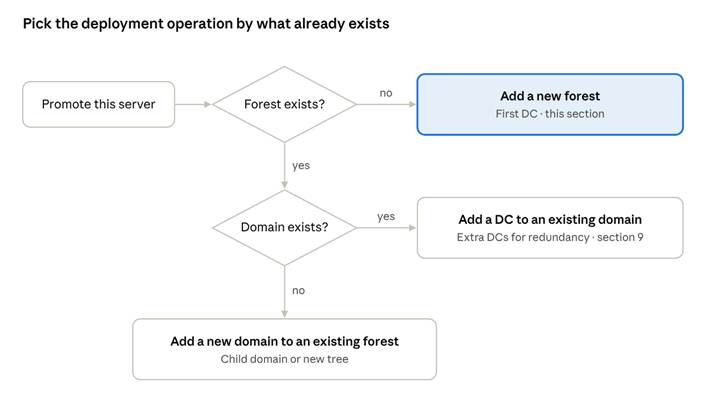
Promotion creates the forest, the domain database, DNS zones and the SYSVOL share, then restarts the server as DC01. Choose Add a new forest for your first DC; the diagram shows when to choose the other two options.
Deployment Configuration: which option to choose
4.1 Wizard walkthrough
Start the wizard from the yellow flag in Server Manager → Promote this server to a domain controller.
| Wizard page | What to set | Notes |
| Deployment Configuration | Add a new forest; Root domain name corp.example.com | |
| Domain Controller Options | Forest and domain functional level; tick DNS server and Global Catalog; enter and confirm the DSRM password | Pick the highest level that all your planned DCs support. RODC is greyed out for the first DC. |
| DNS Options | Click Next | The “delegation cannot be created” warning is normal for an internal-only zone. |
| Additional Options | NetBIOS name CORP | Filled in automatically; check it. |
| Paths | Database C:\Windows\NTDS, Log files C:\Windows\NTDS, SYSVOL C:\Windows\SYSVOL | Defaults are fine; a separate data volume is optional. |
| Review Options | Check every value | View script shows the matching PowerShell — save it for your records. |
| Prerequisites Check | Must show “All prerequisite checks passed successfully” | Warnings about cryptography and DNS delegation are expected. |
| Installation | Click Install | The server restarts automatically when done (about 5–10 minutes). |
After the restart, sign in as CORP\Administrator (the former local Administrator password still works).
4.2 PowerShell equivalent
Import-Module ADDSDeployment
$dsrm = Read-Host -AsSecureString “DSRM password”
# Dry run first: reports problems without changing anything
Test-ADDSForestInstallation -DomainName “corp.example.com” -SafeModeAdministratorPassword $dsrm
Install-ADDSForest `
-DomainName “corp.example.com” `
-DomainNetbiosName “CORP” `
-ForestMode “WinThreshold” `
-DomainMode “WinThreshold” `
-InstallDns:$true `
-DatabasePath “C:\Windows\NTDS” `
-LogPath “C:\Windows\NTDS” `
-SysvolPath “C:\Windows\SYSVOL” `
-SafeModeAdministratorPassword $dsrm `
-Force
WinThreshold is the Windows Server 2016 functional level, which works with 2016, 2019, 2022 and 2025 DCs. Raise it later (section 5.4) once every DC runs a newer version.
4.3 Verify the promotion
Get-ADDomain | Select-Object DNSRoot, NetBIOSName, DomainMode, PDCEmulator
Get-ADForest | Select-Object Name, ForestMode, SchemaMaster
Get-Service ADWS, KDC, Netlogon, DNS | Format-Table Name, Status
Get-SmbShare -Name SYSVOL, NETLOGON
dcdiag /q # no output = no errors
All four services should be Running and both shares should exist.
5. Post-installation configuration
Do these six tasks on the day you build the first DC; each one is far harder to fix after users and computers have joined.
5.1 DNS: forwarders, reverse zone, scavenging
GUI: Server Manager → Tools → DNS.
- Right-click the server → Properties → Forwarders → Edit → add your upstream resolvers (ISP or e.g. 1.1.1.1).
- Right-click Reverse Lookup Zones → New Zone → Primary zone, Store the zone in Active Directory, To all DNS servers in this domain → IPv4 → network ID 10.0.0 → Allow only secure dynamic updates.
- Right-click the server → Set Aging/Scavenging for All Zones → tick Scavenge stale resource records (7 days no-refresh + 7 days refresh is the default).
Set-DnsServerForwarder -IPAddress 1.1.1.1, 8.8.8.8
Add-DnsServerPrimaryZone -NetworkId “10.0.0.0/24” -ReplicationScope Domain -DynamicUpdate Secure
Set-DnsServerScavenging -ScavengingState $true -ScavengingInterval 7.00:00:00 -ApplyOnAllZones
5.2 Time synchronisation
Kerberos fails when clocks differ by more than 5 minutes. Only the DC holding the PDC Emulator role should sync with an external source; every other machine follows the domain hierarchy automatically.
# Run on the PDC Emulator only
w32tm /config /manualpeerlist:”0.pool.ntp.org,0x8 1.pool.ntp.org,0x8″ /syncfromflags:manual /reliable:yes /update
Restart-Service w32time
w32tm /query /status
If the DC is a virtual machine, turn off the hypervisor’s time synchronisation for it (keep it on for other VMs).
5.3 Enable the AD Recycle Bin
Lets you restore deleted users, groups and OUs with all their attributes. It cannot be turned off once enabled.
GUI: Active Directory Administrative Center → select the domain → Tasks pane → Enable Recycle Bin.
Enable-ADOptionalFeature -Identity “Recycle Bin Feature” -Scope ForestOrConfigurationSet -Target “corp.example.com”
5.4 Functional levels
Check with Get-ADForest | Select ForestMode and Get-ADDomain | Select DomainMode. Raise them only after every DC runs the matching Windows Server version or newer; raising cannot be undone in most cases.
GUI: Active Directory Domains and Trusts → right-click the domain → Raise Domain Functional Level.
5.5 Sites and subnets
Rename the default site and map every office subnet, so clients log on to their nearest DC.
GUI: Active Directory Sites and Services → Sites → rename Default-First-Site-Name to HQ → right-click Subnets → New Subnet → 10.0.0.0/16 → select HQ.
Get-ADReplicationSite -Identity “Default-First-Site-Name” | Rename-ADObject -NewName “HQ”
New-ADReplicationSubnet -Name “10.0.0.0/16” -Site “HQ”
New-ADReplicationSite -Name “Branch”
New-ADReplicationSubnet -Name “10.20.0.0/16” -Site “Branch”
New-ADReplicationSiteLink -Name “HQ-Branch” -SitesIncluded HQ, Branch -Cost 100 -ReplicationFrequencyInMinutes 15
5.6 Group Policy Central Store and KDS root key
- Central Store: copy the latest ADMX templates to \\corp.example.com\SYSVOL\corp.example.com\Policies\PolicyDefinitions so every admin edits GPOs with the same templates.
- KDS root key: needed for group Managed Service Accounts (gMSA). Create it once per forest:
Add-KdsRootKey -EffectiveImmediately # usable after AD replication, up to 10 hours
6. Designing Organizational Units
Build OUs around how you administer and apply policy, not around the org chart: an OU exists to delegate rights or to link a GPO. Keep the tree shallow (three to four levels) and create everything under one top-level OU.
Recommended OU structure for corp.example.com
6.1 Design rules
- Never put objects in the built-in CN=Users and CN=Computers containers: they are not OUs, so GPOs cannot be linked to them.
- Keep users and computers in separate OUs.
- Separate privileged admin accounts (Admins OU) from normal staff accounts.
- Turn on Protect object from accidental deletion for every OU (the default when created in ADUC or ADAC).
6.2 Create the OUs
GUI: Active Directory Users and Computers (ADUC) → right-click the domain → New → Organizational Unit → type the name → OK. Repeat inside each parent.
$root = “DC=corp,DC=example,DC=com”
New-ADOrganizationalUnit -Name “_CORP” -Path $root
$corp = “OU=_CORP,$root”
“Admins”,”Staff”,”Computers”,”Servers”,”Groups”,”Services” | ForEach-Object {
New-ADOrganizationalUnit -Name $_ -Path $corp
}
“Finance”,”HR”,”IT” | ForEach-Object { New-ADOrganizationalUnit -Name $_ -Path “OU=Staff,$corp” }
“Desktops”,”Laptops” | ForEach-Object { New-ADOrganizationalUnit -Name $_ -Path “OU=Computers,$corp” }
6.3 Redirect the default containers
New computers joined to the domain and users created by older tools land in the default containers. Redirect them to your OUs so policy applies from the first boot:
redircmp “OU=Desktops,OU=Computers,OU=_CORP,DC=corp,DC=example,DC=com”
redirusr “OU=Staff,OU=_CORP,DC=corp,DC=example,DC=com”
6.4 Delegate control
Give helpdesk staff only the rights they need, on only the OUs they manage.
- In ADUC, right-click OU=Staff → Delegate Control.
- Add the group GG-Helpdesk (never individual users).
- Tick Reset user passwords and force password change at next logon and, if needed, Create, delete, and manage user accounts.
- Click Next → Finish.
7. Managing users, groups and computers
Day-to-day administration happens in three tools: Active Directory Users and Computers (ADUC) for quick edits, Active Directory Administrative Center (ADAC) for the Recycle Bin and fine-grained password policies, and the ActiveDirectory PowerShell module for anything repeated or bulk. Install them on an admin workstation with RSAT rather than working on the DC.
7.1 User accounts
Create a user (GUI): ADUC → browse to OU=Finance,OU=Staff,OU=_CORP → right-click New → User → enter First name, Last name, User logon name (alice.smith) → Next → set an initial password, tick User must change password at next logon → Next → Finish.
# Create one user
New-ADUser -Name “Alice Smith” -GivenName Alice -Surname Smith `
-SamAccountName alice.smith -UserPrincipalName alice.smith@corp.example.com `
-Path “OU=Finance,OU=Staff,OU=_CORP,DC=corp,DC=example,DC=com” `
-AccountPassword (Read-Host -AsSecureString “Initial password”) `
-ChangePasswordAtLogon $true -Enabled $true
# Bulk create from a CSV with columns: First,Last,Sam,OU
Import-Csv .\newusers.csv | ForEach-Object {
New-ADUser -Name “$($_.First) $($_.Last)” -GivenName $_.First -Surname $_.Last `
-SamAccountName $_.Sam -UserPrincipalName “$($_.Sam)@corp.example.com” -Path $_.OU `
-AccountPassword (ConvertTo-SecureString “Temp-Pass-2026!” -AsPlainText -Force) `
-ChangePasswordAtLogon $true -Enabled $true
}
Common user tasks:
| Task | GUI (ADUC) | PowerShell |
| Reset password | Right-click user → Reset Password | Set-ADAccountPassword alice.smith -Reset |
| Unlock account | User → Properties → Account → tick Unlock account | Unlock-ADAccount alice.smith |
| Disable account | Right-click → Disable Account | Disable-ADAccount alice.smith |
| Move to another OU | Drag and drop, or right-click → Move | Get-ADUser alice.smith | Move-ADObject -TargetPath “OU=HR,…” |
| Find locked-out users | Saved Queries | Search-ADAccount -LockedOut |
| Find users inactive 90 days | Saved Queries | Search-ADAccount -AccountInactive -TimeSpan 90.00:00:00 -UsersOnly |
Leaver process: disable the account, remove group memberships, move it to a Disabled OU, and delete it after your retention period (for example 30–90 days).
7.2 Groups
| Scope | Can contain | Use it for |
| Global | Users and global groups from the same domain | Grouping people by role (GG-) |
| Domain local | Users and groups from any trusted domain | Granting access to one resource (DL-) |
| Universal | Users and groups from any domain in the forest | Multi-domain roles; stored in the global catalog |
Group type is either Security (can be granted permissions) or Distribution (email lists only). Follow the AGDLP pattern:
AGDLP: Accounts → Global groups → Domain Local groups → Permissions
New-ADGroup -Name “GG-Finance-Staff” -GroupScope Global -GroupCategory Security `
-Path “OU=Groups,OU=_CORP,DC=corp,DC=example,DC=com”
New-ADGroup -Name “DL-FinShare-Modify” -GroupScope DomainLocal -GroupCategory Security `
-Path “OU=Groups,OU=_CORP,DC=corp,DC=example,DC=com”
Add-ADGroupMember -Identity “GG-Finance-Staff” -Members alice.smith, bob.jones
Add-ADGroupMember -Identity “DL-FinShare-Modify” -Members “GG-Finance-Staff”
Get-ADGroupMember “DL-FinShare-Modify” -Recursive | Select Name
Then grant DL-FinShare-Modify the Modify permission on the folder’s Security tab.
7.3 Computer accounts
Join a PC to the domain (GUI): on the client, Settings → System → About → Domain or workgroup (or sysdm.cpl → Change) → select Domain → corp.example.com → enter domain credentials → restart. The client’s DNS must point to the DCs.
# On the client
Add-Computer -DomainName corp.example.com -OUPath “OU=Desktops,OU=Computers,OU=_CORP,DC=corp,DC=example,DC=com” -Credential CORP\admin.alice -Restart
# On an admin workstation: pre-stage, find stale, repair trust
New-ADComputer -Name “PC-FIN-042” -Path “OU=Desktops,OU=Computers,OU=_CORP,DC=corp,DC=example,DC=com”
Search-ADAccount -AccountInactive -TimeSpan 90.00:00:00 -ComputersOnly
Test-ComputerSecureChannel -Repair -Credential CORP\admin.alice # run on the broken client
8. Group Policy
Group Policy Objects (GPOs) push settings to computers and users; link each GPO to the OU that holds the objects it should affect. Manage them in Group Policy Management Console (GPMC): Server Manager → Tools → Group Policy Management.
8.1 How GPOs are applied
Computer settings apply at startup, user settings at sign-in, and both refresh every 90 minutes (plus a random 0–30 minutes). DCs refresh every 5 minutes. When two GPOs set the same option, the one applied last wins:
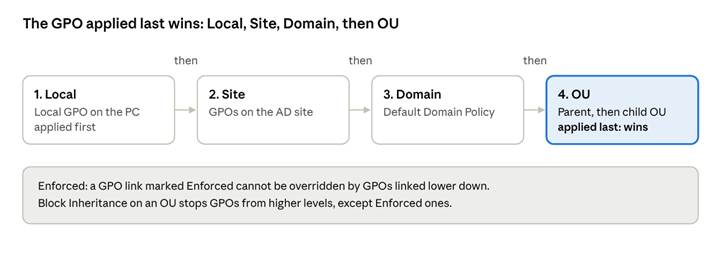
Group Policy processing order (LSDOU) and its two exceptions
8.2 Create and link a GPO
- In GPMC, expand Forest → Domains → corp.example.com → Group Policy Objects.
- Right-click Group Policy Objects → New, name it descriptively, e.g. C-Workstations-ScreenLock (C = computer settings, U = user settings).
- Right-click the new GPO → Edit. Set what you need, for example Computer Configuration → Policies → Windows Settings → Security Settings → Local Policies → Security Options → Interactive logon: Machine inactivity limit = 900 seconds.
- Close the editor (changes save automatically).
- Right-click the target OU (OU=Computers,OU=_CORP) → Link an Existing GPO → choose the GPO.
- Optional: under the GPO’s Scope tab, change Security Filtering from Authenticated Users to a specific group.
- On a client, run gpupdate /force, then gpresult /r to confirm the GPO appears under Applied Group Policy Objects.
New-GPO -Name “C-Workstations-ScreenLock” | New-GPLink -Target “OU=Computers,OU=_CORP,DC=corp,DC=example,DC=com”
Set-GPRegistryValue -Name “C-Workstations-ScreenLock” `
-Key “HKLM\Software\Microsoft\Windows\CurrentVersion\Policies\System” `
-ValueName “InactivityTimeoutSecs” -Type DWord -Value 900
Invoke-GPUpdate -Computer PC-FIN-042 -Force # remote refresh
Get-GPResultantSetOfPolicy -ReportType Html -Path C:\Temp\rsop.html
8.3 Common policies to set
| Goal | Where | Setting |
| Password policy (whole domain) | Default Domain Policy → Computer → Policies → Windows Settings → Security Settings → Account Policies → Password Policy | Minimum length 14+, history 24, complexity on |
| Account lockout | Same path → Account Lockout Policy | Threshold about 10 attempts, duration 15 minutes |
| Different password rules for admins | ADAC → System → Password Settings Container → New | Fine-grained password policy applied to an admin group |
| Map network drives | User → Preferences → Windows Settings → Drive Maps | Item-level targeting by group |
| Screen lock | Computer → Security Options → Machine inactivity limit | 900 seconds |
| Windows Update | Computer → Administrative Templates → Windows Components → Windows Update | Schedule and deadlines |
| Block USB storage | Computer → Administrative Templates → System → Removable Storage Access | All Removable Storage classes: Deny all access |
| Local admin passwords | Computer → Administrative Templates → System → LAPS | Enable Windows LAPS, back up passwords to AD |
Only the Default Domain Policy (or another GPO linked at the domain root) can set the domain password policy for normal accounts; password settings linked to OUs are ignored for domain accounts.
8.4 Back up and restore GPOs
Backup-GPO -All -Path “D:\GPOBackups”
Restore-GPO -Name “C-Workstations-ScreenLock” -Path “D:\GPOBackups”
9. Adding domain controllers and replication
Every domain needs at least two writable DCs; add a second one (DC02) as soon as the first is healthy. Each DC holds a full copy of the domain and replicates changes to the others automatically.
9.1 Promote an additional DC
Prepare DC02 as in section 2 (rename, static IP 10.0.0.11), with preferred DNS = 10.0.0.10 (DC01). Then install the role (section 3) and run the promotion wizard:
- Deployment Configuration: choose Add a domain controller to an existing domain, domain corp.example.com, and supply credentials of a Domain Admin.
- Domain Controller Options: tick DNS server and Global Catalog, pick the correct Site (HQ), and enter a DSRM password. For an insecure branch office, tick Read only domain controller (RODC) instead.
- Additional Options: Replicate from: Any domain controller, or choose a specific DC. Install from media (IFM) is useful over slow links.
- Accept the defaults for paths, review, and click Install. The server restarts.
- After restart, set DC02’s DNS to preferred 10.0.0.10, alternate 127.0.0.1, and update DC01 to prefer 10.0.0.11.
Install-WindowsFeature AD-Domain-Services -IncludeManagementTools
Install-ADDSDomainController `
-DomainName “corp.example.com” `
-SiteName “HQ” `
-InstallDns:$true `
-NoGlobalCatalog:$false `
-Credential (Get-Credential CORP\Administrator) `
-SafeModeAdministratorPassword (Read-Host -AsSecureString “DSRM password”) `
-Force
9.2 How replication works
| Type | Between | Timing | Managed by |
| Intra-site | DCs in the same site | Within seconds of a change (change notification) | Knowledge Consistency Checker (KCC), automatic |
| Inter-site | DCs in different sites | Per site-link schedule; default every 180 minutes, set 15 in section 5.5 | Site links and bridgehead servers |
| SYSVOL | All DCs | Continuous | DFS Replication (DFSR) |
| Urgent | All DCs | Immediately | Account lockouts, password changes to the PDC Emulator |
9.3 Check and force replication
repadmin /replsummary # one-line health per DC; look for 0 failures
repadmin /showrepl DC02 # inbound partners and last success time
repadmin /syncall /AdeP # push all partitions to all DCs now
Get-ADReplicationFailure -Target corp.example.com -Scope Domain
# Domains upgraded from Windows Server 2003/2008 may still use FRS for SYSVOL
dfsrmig /getglobalstate # must report ‘Eliminated’
GUI: Active Directory Sites and Services → Sites → HQ → Servers → DC02 → NTDS Settings → right-click a connection → Replicate Now.
10. FSMO roles
Five operations must be done by exactly one DC at a time; the first DC holds all five. Keep them together on a well-protected, well-backed-up DC unless you have a specific reason to split them.
| Role | Scope | What it does | Impact if offline |
| Schema Master | Forest | Only DC that can change the schema | Schema updates (e.g. new Exchange or OS version) fail |
| Domain Naming Master | Forest | Adds and removes domains | Cannot add or remove domains |
| PDC Emulator | Domain | Authoritative time source, password-change and lockout processing, GPO editing default | Time drift, slow lockout handling, users notice within hours |
| RID Master | Domain | Hands out pools of security IDs to DCs | New objects fail once a DC’s RID pool runs out |
| Infrastructure Master | Domain | Updates cross-domain references | Stale group membership names in multi-domain forests |
10.1 See who holds the roles
netdom query fsmo
# or
Get-ADForest | Select-Object SchemaMaster, DomainNamingMaster
Get-ADDomain | Select-Object PDCEmulator, RIDMaster, InfrastructureMaster
GUI: ADUC → right-click domain → Operations Masters (RID, PDC, Infrastructure); Active Directory Domains and Trusts → right-click the root → Operations Master (Domain Naming); Active Directory Schema snap-in (register with regsvr32 schmmgmt.dll) → Operations Master (Schema).
10.2 Transfer (planned) or seize (emergency)
Transfer when both DCs are online — for example before decommissioning DC01:
Move-ADDirectoryServerOperationMasterRole -Identity DC02 `
-OperationMasterRole SchemaMaster, DomainNamingMaster, PDCEmulator, RIDMaster, InfrastructureMaster
Seize only when the current holder is permanently gone. Add -Force to the same command. A DC whose roles were seized must never come back online: wipe it, then remove its leftover metadata in Active Directory Sites and Services (delete the server object) or with ntdsutil → metadata cleanup.
After moving the PDC Emulator role, repeat the external time configuration from section 5.2 on the new holder.
11. Backup and recovery
Back up the System State of at least two DCs every day and keep copies offline: a backup older than the tombstone lifetime (180 days by default) cannot be restored. Test a restore in an isolated lab at least once a year.
11.1 Set up System State backups
- Install the feature: Install-WindowsFeature Windows-Server-Backup.
- Open Windows Server Backup (wbadmin.msc) → Backup Schedule → Custom → Add Items → tick System state → choose a daily time → pick a dedicated backup disk or network share.
# One-off System State backup to drive E:
wbadmin start systemstatebackup -backupTarget:E: -quiet
# List existing backups
wbadmin get versions
11.2 Choose the right recovery method
| Situation | Method | Steps in short |
| A user, group or OU was deleted | AD Recycle Bin (section 5.3) | ADAC → Deleted Objects → right-click → Restore, or Get-ADObject -Filter ‘Name -like “Alice*”‘ -IncludeDeletedObjects | Restore-ADObject |
| An object was wrongly changed (not deleted) | Snapshot or authoritative restore of that object | Mount an AD snapshot (ntdsutil snapshot) to compare and copy values back, or restore just that object authoritatively |
| One DC is corrupt or lost, others are healthy | Rebuild it | Demote or clean up metadata, reinstall the OS, promote again; replication refills it |
| One DC needs its database back | Non-authoritative restore | Boot into DSRM, restore System State; other DCs then update it |
| Deleted objects must be forced back on all DCs (no Recycle Bin) | Authoritative restore | Non-authoritative restore in DSRM, then ntdsutil → authoritative restore → restore subtree “OU=…” before rebooting |
| Every DC is lost or compromised | Forest recovery | Follow Microsoft’s AD Forest Recovery Guide; restore one DC per domain from a known-clean backup |
11.3 Boot into Directory Services Restore Mode (DSRM)
bcdedit /set safeboot dsrepair
shutdown /r /t 0
:: sign in as .\Administrator with the DSRM password, run wbadmin start systemstaterecovery …
bcdedit /deletevalue safeboot
Reset the DSRM password periodically with ntdsutil → set dsrm password → reset password on server null.
12. Security hardening
Most domain compromises start with a stolen admin credential, so the biggest gains come from limiting where privileged accounts are used. Give every admin two accounts (a normal one for email and browsing, and an adm- one for admin work) and keep those admin accounts within their tier:
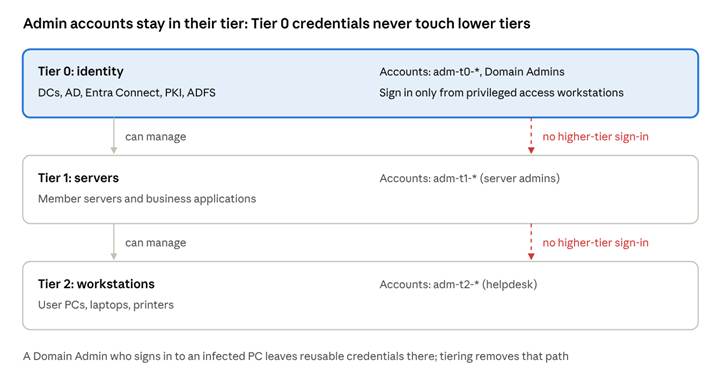
Administrative tier model
12.1 Hardening checklist
| Area | Action | How |
| Privileged groups | Keep Domain Admins, Enterprise Admins and Schema Admins nearly empty; Schema Admins empty except during upgrades | Get-ADGroupMember “Domain Admins” monthly |
| Protected Users | Add Tier 0 admin accounts to the Protected Users group (no NTLM, no cached credentials, no delegation) | Add-ADGroupMember “Protected Users” adm-t0-alice |
| Sensitive accounts | Tick Account is sensitive and cannot be delegated on admin accounts | ADUC → user → Account tab |
| Built-in Administrator | Rename it, give it a long random password, keep it for break-glass use only | Vault the password |
| Local admin passwords | Deploy Windows LAPS so every PC and server has a unique, rotating local admin password | Update-LapsADSchema, then GPO (section 8.3) |
| Legacy protocols | Disable SMBv1 and NTLMv1; require SMB signing and LDAP signing / channel binding on DCs | GPO on OU=Domain Controllers |
| Service accounts | Replace user-based service accounts with gMSAs; give remaining ones long passwords and add them to the Services OU | New-ADServiceAccount |
| Kerberoasting | Find accounts with SPNs and make sure their passwords are long or that they are gMSAs | Get-ADUser -Filter {ServicePrincipalName -like “*”} |
| krbtgt | Reset the krbtgt password twice (waiting for replication between resets) yearly and after any suspected compromise | Microsoft’s published reset script |
| DCs | Run nothing else on DCs (no web browsing, no extra apps), patch monthly, restrict RDP to Tier 0 admins | |
| Auditing | Enable Advanced Audit Policy for logon, account management, directory service changes; forward logs to a SIEM | GPO on OU=Domain Controllers |
| Backups | Keep at least one DC backup offline or immutable | Section 11 |
12.2 Event IDs worth alerting on
| Event ID | Meaning |
| 4720 | User account created |
| 4728 / 4732 / 4756 | Member added to a global / domain local / universal security group |
| 4740 | Account locked out |
| 4625 | Failed logon (watch for bursts) |
| 4672 | Special privileges assigned at logon (admin logon) |
| 4769 | Kerberos service ticket requested (spikes with RC4 can indicate Kerberoasting) |
| 5136 | Directory object modified |
| 1102 | Security log cleared |
13. Monitoring, health checks and troubleshooting
A five-minute daily check catches most problems before users notice: run the script below on an admin workstation each morning and investigate any failure it reports. Almost every AD fault is ultimately a DNS, time or replication fault, so check those three first.
13.1 Daily health check
$dcs = (Get-ADDomainController -Filter *).HostName
foreach ($dc in $dcs) {
Write-Host “=== $dc ===” -ForegroundColor Cyan
dcdiag /s:$dc /q # silent unless a test fails
Get-Service -ComputerName $dc ADWS, KDC, Netlogon, NTDS, DNS, DFSR |
Where-Object Status -ne Running
}
repadmin /replsummary
w32tm /monitor /domain:corp.example.com
Get-PSDrive -PSProvider FileSystem | Select Name, Free # run on each DC: watch free disk space
Also review weekly: the Directory Service, DNS Server and DFS Replication event logs on each DC (Event Viewer → Applications and Services Logs), and any backup failures.
13.2 Common problems and fixes
| Symptom | Likely cause | How to check | Fix |
| “The specified domain either does not exist or could not be contacted” when joining | Client uses a public or wrong DNS server | ipconfig /all; nslookup -type=SRV _ldap._tcp.dc._msdcs.corp.example.com | Point client DNS at the DCs only |
| “The trust relationship between this workstation and the primary domain failed” | Computer account password out of sync (restored snapshot, long offline) | Test-ComputerSecureChannel | Test-ComputerSecureChannel -Repair, or rejoin the domain |
| Logons fail with time or Kerberos errors | Clock skew over 5 minutes | w32tm /query /status on client and PDC | Fix PDC time source (section 5.2); w32tm /resync |
| Changes on one DC don’t appear on another | Replication failure | repadmin /showrepl, Event ID 1311, 2042 | Fix DNS/connectivity between DCs; repadmin /syncall /AdeP |
| Event 2042 “It has been too long since this machine last replicated” | DC offline longer than tombstone lifetime | repadmin /showrepl | Do not force replication; demote/clean up and rebuild the DC |
| GPO not applying | Wrong OU link, security filtering, WMI filter, or SYSVOL not replicated | gpresult /h report.html; check \\corp.example.com\SYSVOL on each DC | Fix link or filter; check DFSR event log |
| Users repeatedly locked out | Old password saved in a mapped drive, phone, service or scheduled task | Event 4740 on the PDC Emulator shows the source computer | Clear stored credentials on that device |
| SYSVOL or NETLOGON share missing on a new DC | Initial SYSVOL replication did not finish | Get-SmbShare; DFSR event 4614 without a following 4604 | Fix DFSR replication; as a last resort perform a non-authoritative SYSVOL sync |
| Slow logons in a branch | Branch subnet not mapped to a site, clients authenticate over the WAN | nltest /dsgetsite on the client | Add the subnet to the correct site (section 5.5) |
13.3 Useful diagnostic commands
| Command | What it tells you |
| dcdiag /v /c /e | Full test of every DC in the enterprise |
| dcdiag /test:dns /v | DNS registration, delegation and forwarders |
| nltest /dsgetdc:corp.example.com | Which DC a client is using |
| nltest /sc_verify:corp.example.com | Health of the computer’s secure channel |
| klist / klist purge | Show or clear Kerberos tickets on a client |
| gpresult /r | GPOs applied to the current user and computer |
| repadmin /showobjmeta DC01 “CN=Alice Smith,…” | When and where each attribute of an object last changed |
14. Quick reference
The commands below cover the tasks admins run most often. All PowerShell cmdlets come from the ActiveDirectory, ADDSDeployment, GroupPolicy and DnsServer modules, installed with RSAT.
| Task | Command |
| Install AD DS role | Install-WindowsFeature AD-Domain-Services -IncludeManagementTools |
| Create new forest | Install-ADDSForest -DomainName corp.example.com -InstallDns |
| Add DC to existing domain | Install-ADDSDomainController -DomainName corp.example.com -InstallDns |
| Demote a DC | Uninstall-ADDSDomainController |
| Domain / forest info | Get-ADDomain, Get-ADForest |
| List all DCs | Get-ADDomainController -Filter * | Select Name, Site, IPv4Address |
| FSMO holders | netdom query fsmo |
| Create OU | New-ADOrganizationalUnit -Name Sales -Path “OU=Staff,OU=_CORP,DC=corp,DC=example,DC=com” |
| Create user | New-ADUser -Name “Alice Smith” -SamAccountName alice.smith -Enabled $true -AccountPassword (Read-Host -AsSecureString) |
| Find a user | Get-ADUser alice.smith -Properties * |
| Reset password | Set-ADAccountPassword alice.smith -Reset |
| Unlock account | Unlock-ADAccount alice.smith |
| Locked-out users | Search-ADAccount -LockedOut |
| Disabled users | Search-ADAccount -AccountDisabled -UsersOnly |
| Password never expires | Get-ADUser -Filter {PasswordNeverExpires -eq $true} |
| Create group | New-ADGroup -Name GG-Sales -GroupScope Global -GroupCategory Security |
| Add to group | Add-ADGroupMember GG-Sales -Members alice.smith |
| User’s groups | Get-ADPrincipalGroupMembership alice.smith | Select Name |
| Restore deleted object | Get-ADObject -Filter ‘Name -like “Alice*”‘ -IncludeDeletedObjects | Restore-ADObject |
| Join computer to domain | Add-Computer -DomainName corp.example.com -Restart |
| New GPO and link | New-GPO -Name X | New-GPLink -Target “OU=…” |
| Refresh policy | gpupdate /force |
| Policy report | gpresult /h C:\Temp\gp.html |
| Back up all GPOs | Backup-GPO -All -Path D:\GPOBackups |
| Replication summary | repadmin /replsummary |
| Force replication | repadmin /syncall /AdeP |
| DC health | dcdiag /q |
| DNS SRV check | nslookup -type=SRV _ldap._tcp.dc._msdcs.corp.example.com |
| Time status | w32tm /query /status |
| System State backup | wbadmin start systemstatebackup -backupTarget:E: |
Management consoles
| Console | Run command | Used for |
| Active Directory Users and Computers | dsa.msc | Users, groups, computers, OUs, delegation |
| Active Directory Administrative Center | dsac.exe | Recycle Bin, fine-grained password policies, PowerShell history |
| Group Policy Management | gpmc.msc | Creating, linking and reporting on GPOs |
| Active Directory Sites and Services | dssite.msc | Sites, subnets, site links, replication |
| Active Directory Domains and Trusts | domain.msc | Trusts, functional levels, UPN suffixes |
| DNS Manager | dnsmgmt.msc | Zones, records, forwarders, scavenging |
| ADSI Edit | adsiedit.msc | Low-level attribute edits (use with care) |