Update Browser Bookmarks in Group Policy – Edge
This guide assumes that you have already created a GPO called “Browser Shortcuts” and linked it to the root or the OU containing users.
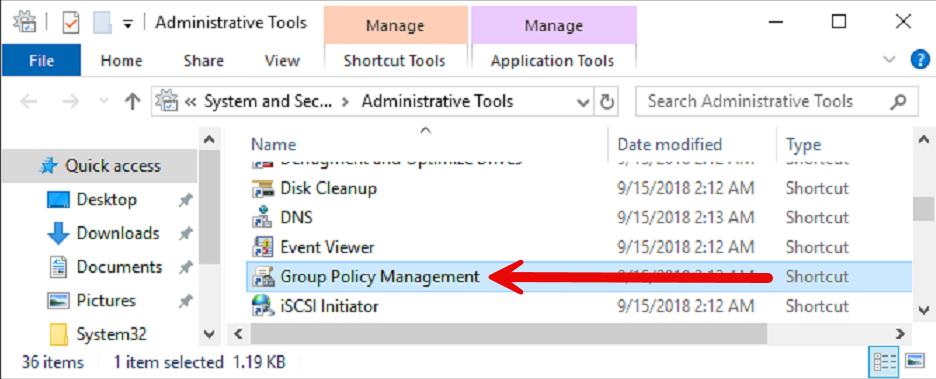
In “Administrative Tools,” open “Group Policy Management”
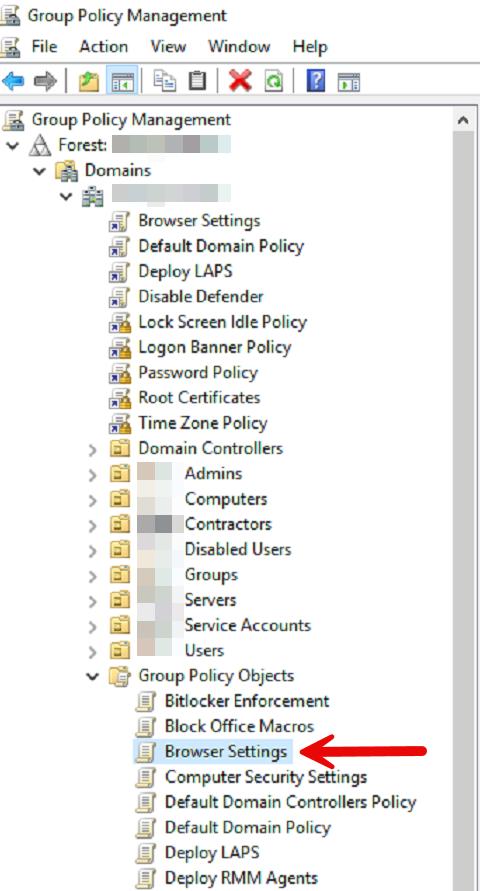
Locate the “Browser Settings” GPO, right-click, then “Edit.”
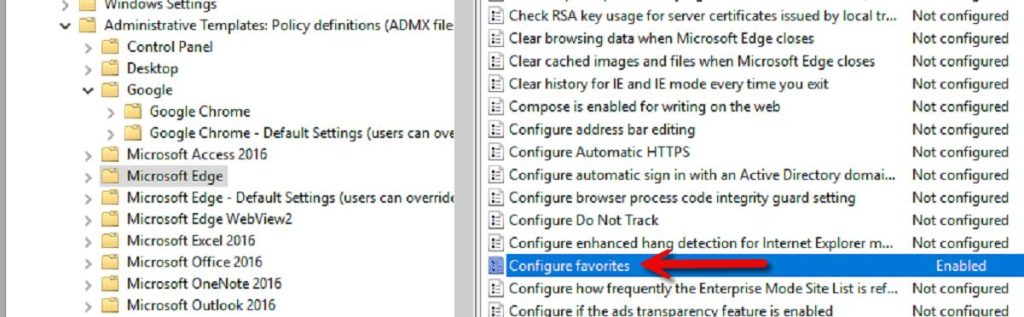
Navigate to User Configuration → Policies → Administrative Templates → Microsoft Edge. Then right-click on “Configure favorites” and click “Edit.” The follow the same steps for Google Chrome. You can use the same JSON that you editied.
11
Once browser favorites are updated, you can close this out. You will need to either wait for the user to log off and back on again, or run “gpupdate /force” for the change to take effect immediately.